
Send welcome message to new member, providing link to site, retrieve user name and password instructions, reminder to update their profile, and link to mobile app access instructions.
1. Go to Admin Control Panel > EMAIL > click EMAIL.
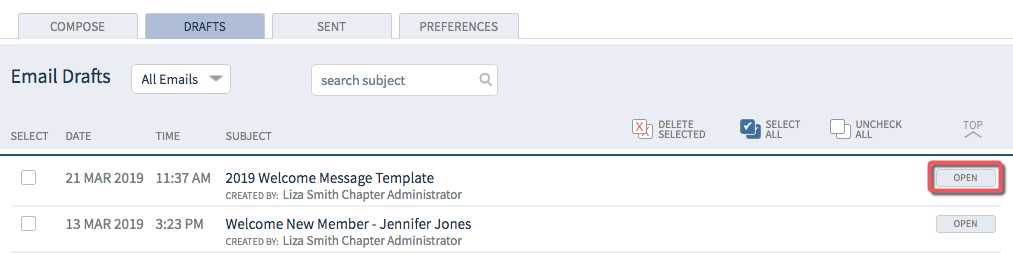
2. Click DRAFTS > use the 'search subject field' entering "Welcome" to see if there is a Welcome Message Template > click Open.
*Look for Welcome message closest to the top of the list. Delete older welcome messages as they may not have accurate links. Send test email to yourself > click links to prior to sending to confirm.
3. SENDER > choose yourself as sender.
OPTIONAL: Choose preferred email if available. Do not use gmail to send email from ChapterPRO.

4. RECIPIENTS > select by Directory individually > choose member type if applicable > send to member > click + to view RECIPIENTS list > check box next to name.

5. Customize subject line to your preference.

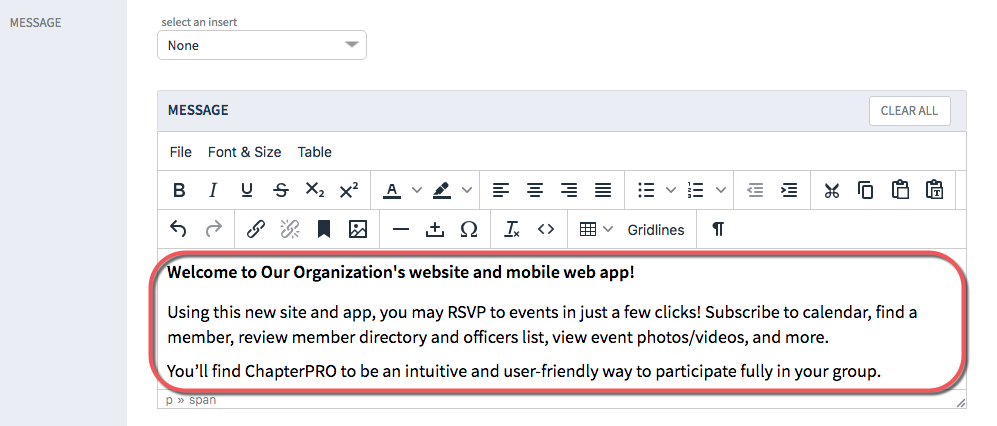
6. Customize MESSAGE if desired.
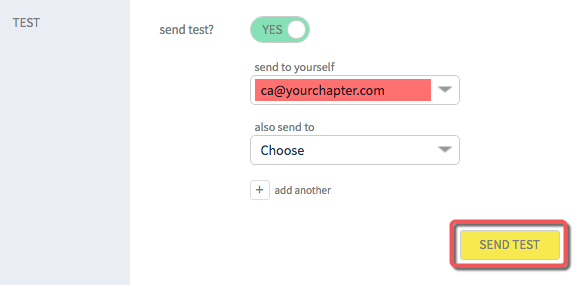
7. TEST > send test? > click toggle switch to YES > click SEND TEST (email is saved to drafts) > go to your email inbox to review and click links to confirm all is correct.
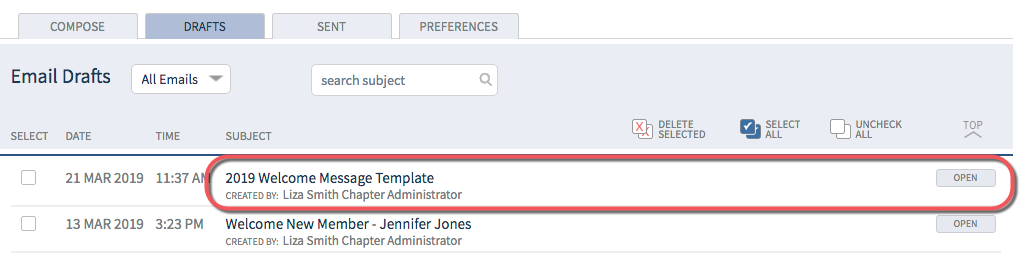
8. Return to site > go to DRAFTS > locate Welcome message > click OPEN > edit as needed.
9. SEND > ready to send? > click toggle switch to YES > click SEND EMAIL > email is saved to SENT folder.

TIP: After email is sent, go to SENT folder > find Welcome message in list > click REOPEN > click SAVE AS DRAFT to put a copy back in the DRAFTS folder so it's ready for next time!
